Creating and Opening Fonts
You can begin with a new font or with a file that already contains drawings and font information. Creating a font gives you a place to develop a design. Opening an existing font gives you material to inspect, extend, or revise.
Both routes lead to a working font in FontLab. Opening or creating it does not complete the file-handling task: save it as VFC or VFJ to preserve the working data on disk.
Creating a New Font
The Welcome Dialog
The Welcome Dialog provides a starting point for creating a font and opening existing work. It normally appears when FontLab starts. To open it again, choose FontLab > Welcome... on macOS or File > Welcome... on Windows.
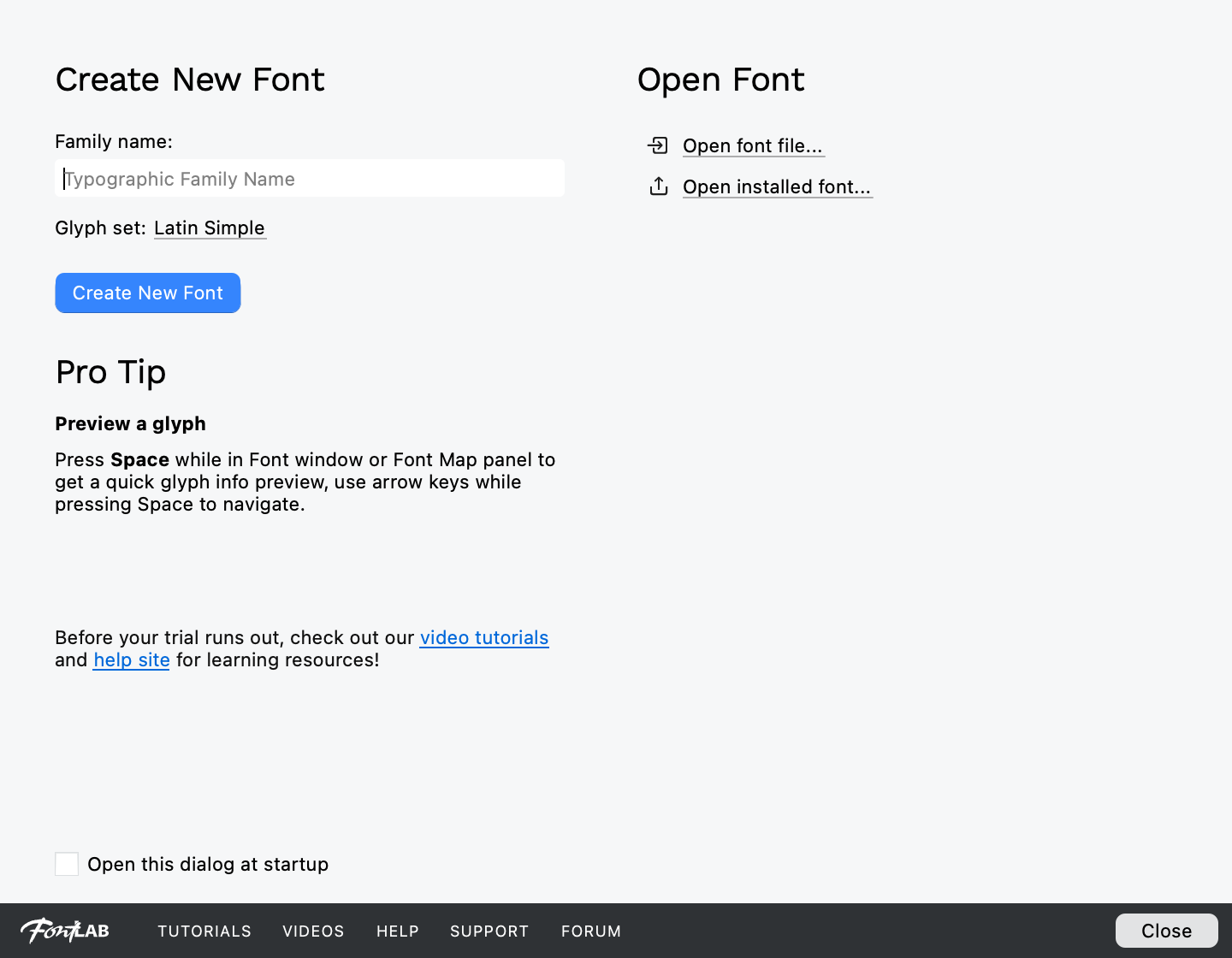
The Welcome dialog brings new-font setup and opening routes together. Glyph set chooses the initial display repertoire; it does not create its drawings.
To create a font from the dialog:
- In Family name, enter a provisional family name if you have one. You can leave the field empty and name the font later.
- In Glyph set, choose the set of glyph positions you want to see initially. This choice concerns the display; it does not generate drawings.
- Click Create New Font.
FontLab opens a Font window for the new font. It initializes the font's properties with starting values and creates the .notdef glyph. Treat the new font as a template with factory defaults: configure its names in Naming Fonts and Families and its dimensions in Font Metrics and Glyph Metrics as those topics become relevant. This specially named glyph serves the missing-glyph role. No alphabet has been drawn or generated merely by creating the font.
If you supplied a family name, FontLab uses it as the starting name. You can refine the family and style names on the Names page of Font Info.
The initial glyph set
A Font window can show positions for glyphs that do not yet exist. The Glyph set choice in the Welcome Dialog selects an initial display filter, so the window may present many cells even though the new font contains only .notdef.
The distinction is useful when planning work. A position in the displayed set indicates something you may want to create; it is not evidence that the font already contains that glyph. Choosing a larger display set does not create a larger collection of finished glyphs.
You can change the displayed set later. You do not need to settle the final coverage of a typeface before creating its first working file.
The File menu
Choose File > New Font, or press Cmd+N (Ctrl+N on Windows), to create a font without using the Welcome Dialog. FontLab uses its current default display set for the new Font window. The result is the same kind of new working font, with initial properties and the .notdef glyph.
To stop the Welcome Dialog appearing automatically, turn off Open this dialog at startup in the dialog. You can still reopen it through the menu whenever you need it.
Opening Fonts
Native working files, interchange sources, and production fonts all use the opening workflow. FontLab reads the selected data into a working font; it does not require a separate import step merely because the file came from another application. This includes supported Open Font Format 2026 fonts; opening their newer structures does not imply that FontLab can export the same formats.
As described in Understanding Font Formats, native files preserve the editable design data with full fidelity; interchange files require interpretation, and production files require further reconstruction of their compiled data. An interchange source may retain development information unavailable in a production font. A finished font can still be opened, but information that was omitted during its production cannot be recovered simply by opening it.
Before modifying a font made by someone else, check that its license permits the work you intend to do. Being able to open a file does not itself grant permission to modify or redistribute it.
Opening a file
- Choose File > Open Fonts..., or press Cmd+O (Ctrl+O on Windows).
- Locate and select the font file. You can select several files to open them together.
- Confirm the selection in the file dialog.
FontLab reads the selected files and opens the resulting fonts. Selecting a supported ZIP archive lets FontLab read fonts from the archive without requiring you to extract it first.
The original file remains on disk. To preserve the working font in FontLab's native form, save it as VFC or VFJ. This is particularly useful after opening a production file, because later work can then continue from the saved FontLab source.
Opening a folder
Choose File > Open > Font Folder... and select a folder to open the font files FontLab recognizes inside it. This is useful when several related files are stored together. Files that FontLab does not recognize as fonts are ignored.
UFO is folder-based. On Windows, one route is to use Font Folder... and select the folder containing the .ufo directory. Alternatively, use Open Fonts..., navigate inside the .ufo directory, and select one of its .plist files. The selected file gives FontLab an entry point to the UFO package; it is not a separate font to be edited on its own.
Opening an installed font
- Choose File > Open > Installed Fonts....
- Find the font in the list. Use the writing-system filter or the name filter to narrow the selection if needed. Enable List only variable fonts to restrict the list to installed variable fonts.
- Inspect the preview. You can change its sample text to see characters relevant to your work.
- Select the font or fonts you want and click OK.
This opens a working copy of the font data in FontLab. Editing that working copy does not automatically replace the font installed on your system.
Recent fonts and the Welcome Dialog
File > Recent Fonts lists recently opened fonts. Choose an entry to reopen its file. The list is a route to those files, not a set of backup copies; a file still needs to be available at its location.
The Welcome Dialog offers the same principal choices. Click an entry in its recent-font list to reopen it, Open font file... to choose a file, or Open installed font... to browse installed fonts. A fresh installation may have no recent files to show.
Opening from the operating system
You can double-click a native font file when the operating system associates that file type with FontLab. If another application opens instead, use File > Open Fonts... to choose it explicitly.
You can also drag font files onto the FontLab application icon, including its Dock icon on macOS. FontLab can launch to open the dropped files if it is not already running.
A font for exploration
A newly created font is the right starting point for a new design, but an existing font is more useful for exploring the interface and glyph organization in the following Parts. Use a font whose license permits that exploration and any modifications you make; an open-source font supplied with its license is a suitable choice.
Keep the original file and save a separate native working copy for your exercises. You can then inspect an actual glyph collection while learning how fonts are displayed and organized, without having to draw that collection first.
Working with Multiple Open Fonts
FontLab can keep several fonts open at once, with exactly one current at a time. The current font is the one that ordinary font-specific commands act on and whose information the interface currently presents.
Click in a font's Font window, or activate its tab, to make that font current. When you switch to a different font, the relevant panels update to reflect the newly active font. The current font is therefore a working context, not simply the last file you opened.
Before naming, saving, or closing a font, activate the font you intend to affect and check its displayed identity. This is especially useful when several members of one family are open, or when two files have similar names.
The Fonts panel lists the open fonts. Some panels and dialogs have their own font selector or are designed to compare or operate on several fonts; those controls define their own scope. Check the target shown by a multi-font control before applying its operation.

The Fonts panel lists open fonts with their family, style, and filename.