Help and Support
FontLab provides help at several levels. Quick Help explains the control under your pointer. The Help panel provides a longer account of the current context. The manual develops the task and its background, while the support portal gives you a place to report a problem and exchange the files needed to investigate it.
Choose the resource that matches the question. A control label may need only a brief explanation. A task involving several tools benefits from a manual chapter. An unexpected result needs a description of what happened and the conditions that produced it.
In-App Help
Quick Help
Quick Help displays a short explanation of an interface element. You can use it while inspecting a toolbar button, a panel control, a field, or a menu command. It describes the element you are pointing at, allowing you to read about a control before using it.
For a single explanation:
- Move the pointer over the control you want to understand.
- Press and hold F1. A Quick Help tip appears.
- Release F1 to dismiss the tip.
For a longer exploration, briefly press F1 to turn Quick Help mode on. Move the pointer between controls to read their tips, then briefly press F1 again to turn the mode off. This leaves your hands free while you inspect several controls in the same area.
To inspect menu commands, turn Quick Help on before opening the menu. Open the menu and move the pointer over its commands to read their descriptions. Pointing at a command for help is separate from choosing it.
You can also turn Quick Help mode on or off with Help > Quick Help. With the mode off, holding F1 remains available for a temporary explanation.
On macOS, the function keys may control system features unless you also hold Fn. If that is how your keyboard is configured, use Fn+F1 in place of F1 in these instructions. For a combination such as Shift+F1, include Fn as well.
Help panel
The Help panel provides a persistent place to read longer explanations. Choose Help > Help Panel or press Shift+F1 to open it. As you change the active tool, panel, or dialog, the help text updates to follow the context.
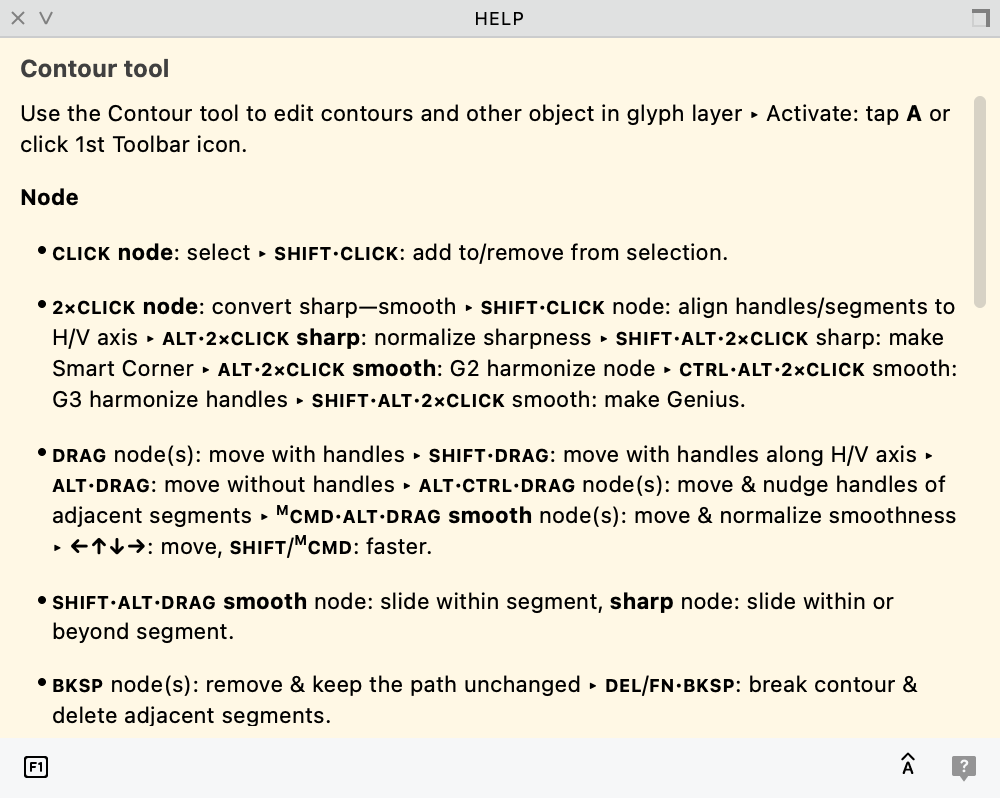
The Help panel keeps the active tool’s instructions visible while you work. This capture shows the Contour tool’s gestures.
To read individual Quick Help tips in a fixed place, use the Help panel’s button identified in Quick Help as Show Quick Help content in this window instead of the moving balloon. Turn it on to show the tips in the panel. Turn it off to return them to the floating balloon.
Keep the panel visible when you want to read an explanation alongside the interface it describes. Quick Help answers a question about one control; the Help panel gives that control or working area more room for explanation.
The panel's text-size button, identified in Quick Help as Larger Help panel text, switches between smaller and larger text. Turn it on for the larger size and off to return to the smaller size. This changes the text in the Help panel.
The Help panel also works with Tools > Commands & Shortcuts. With both open, selecting a command in the list displays its Quick Help description in the panel. You can read about commands without running them. See Commands and Shortcuts.
Documentation and Resources
The Help menu provides access to documentation, support, the user forum, and FontLab's website. These destinations serve different purposes:
| Resource | Use it for | In FontLab |
|---|---|---|
| User manual | Explanations, workflows, and reference material | Help > User Manual |
| Support portal | Technical support | Help > Support |
| FontLab forum | Questions and discussions with other users | Help > Forum |
| FontLab website | FontLab product information | Help > FontLab Web |
Help > User Manual opens the manual in your default web browser. The Welcome Dialog also provides links to help and support resources, so you can reach them when starting work as well as from the Help menu.
The FontLab help site provides access to online help resources. Check which release a tutorial describes when its interface differs from yours. A tutorial can show a particular piece of work in progress, while the manual provides the fuller explanation you may need to adapt that method.
The FontLab forum is a public place to exchange methods, ask questions, and discuss the application with other users. Use the support portal for a problem that requires staff investigation or a font file that you need to share privately.
Beyond application-specific help, the type-design community provides discussion, criticism, and further reading. TypeDrawers is a forum for discussion of type design. Books on letterform analysis and the process of making type can complement software instruction: they develop the visual judgment that you bring to the tools. For further reading, look for a treatment of the stage you are working on, such as letterform analysis, drawing, or the development of a complete typeface.
Reporting Problems
A useful problem report lets someone else follow the path from the starting file to the unexpected result. The most helpful distinction is between what you expected and what FontLab actually did. Describe both, even when the difference seems obvious in your working session.
Choose Help > Support or visit the FontLab support portal to submit a ticket. Use one ticket for each distinct issue so its examples, replies, and resolution remain together.
Report contents
Include the following information where it applies:
- Application and system: the FontLab version and build number shown in About FontLab, your operating system, and its version.
- Starting state: the font or test file, the relevant selection, and the tool, panel, or dialog in use.
- Steps to reproduce: the actions in order, from that starting state to the problem.
- Expected and actual results: what you intended to happen and what appeared instead. Include an error message exactly as displayed.
- Frequency: whether the problem happens every time or only under some conditions you have observed.
- Supporting material: a screenshot, short screen recording, crash report, or test font that helps reproduce or explain the problem.
The build number matters because fixes can distinguish releases with similar version names. Copy the complete displayed version rather than describing it as “the latest.” A report remains useful after a newer build is released.
Write reproduction steps as actions another person can follow. Name the command or control and the object it acts on. If you cannot reproduce the problem reliably, describe what you were doing when it occurred and which parts remain uncertain. A report can be useful without a confirmed cause.
Files and recordings
A screenshot shows the state of the interface at a particular moment. A short screen recording can show the sequence that leads to that state. Use a screen-recording tool already available to you; the report does not depend on a particular recording application.
If FontLab crashed, include the crash report when available. Attach a test font if the problem depends on its contents. Use a file you are entitled to share, and keep any proprietary material in the support ticket rather than posting it to the public forum.
To submit several related files together, gather them in a folder, compress the folder as a ZIP archive, and attach the archive to the ticket. Identify what each file demonstrates in the report. You can add further attachments to the existing ticket if support asks for more information.
Follow-up
Keep replies about the same problem in the same ticket. If it recurs after the ticket has been closed, reply to that ticket and describe the recurrence, including the build in which it happened. This preserves the earlier investigation alongside the new information.
Feature requests
You can also submit a feature request through the support portal. Describe the work you want to accomplish, how you currently approach it, and what the proposed change would allow you to do. A concrete use case helps explain a request even when there is more than one possible interface solution.
FontLab evaluates requests in relation to development plans, available resources, and technical feasibility. Submitting a request gives the team evidence of the need; it does not establish a release commitment.