Preparing for Italics
An italic glyph leans, but its horizontal advance is still measured along the baseline. FontLab provides a slanted metric view so you can judge the space around a leaning drawing. Set the italic angle and caret offset before relying on that view.
These settings describe the drawing space and cursor placement. Entering an angle does not transform an upright outline into an italic drawing.
Italic Angle and Slope
Open File > Font Info > Font Dimensions and check which master is active. The Italic angle field specifies the slant in degrees from vertical. In FontLab's field, a positive value represents a rightward lean; a negative value represents a leftward lean. Use zero for an upright design. The field accepts values from −60° to 60°.
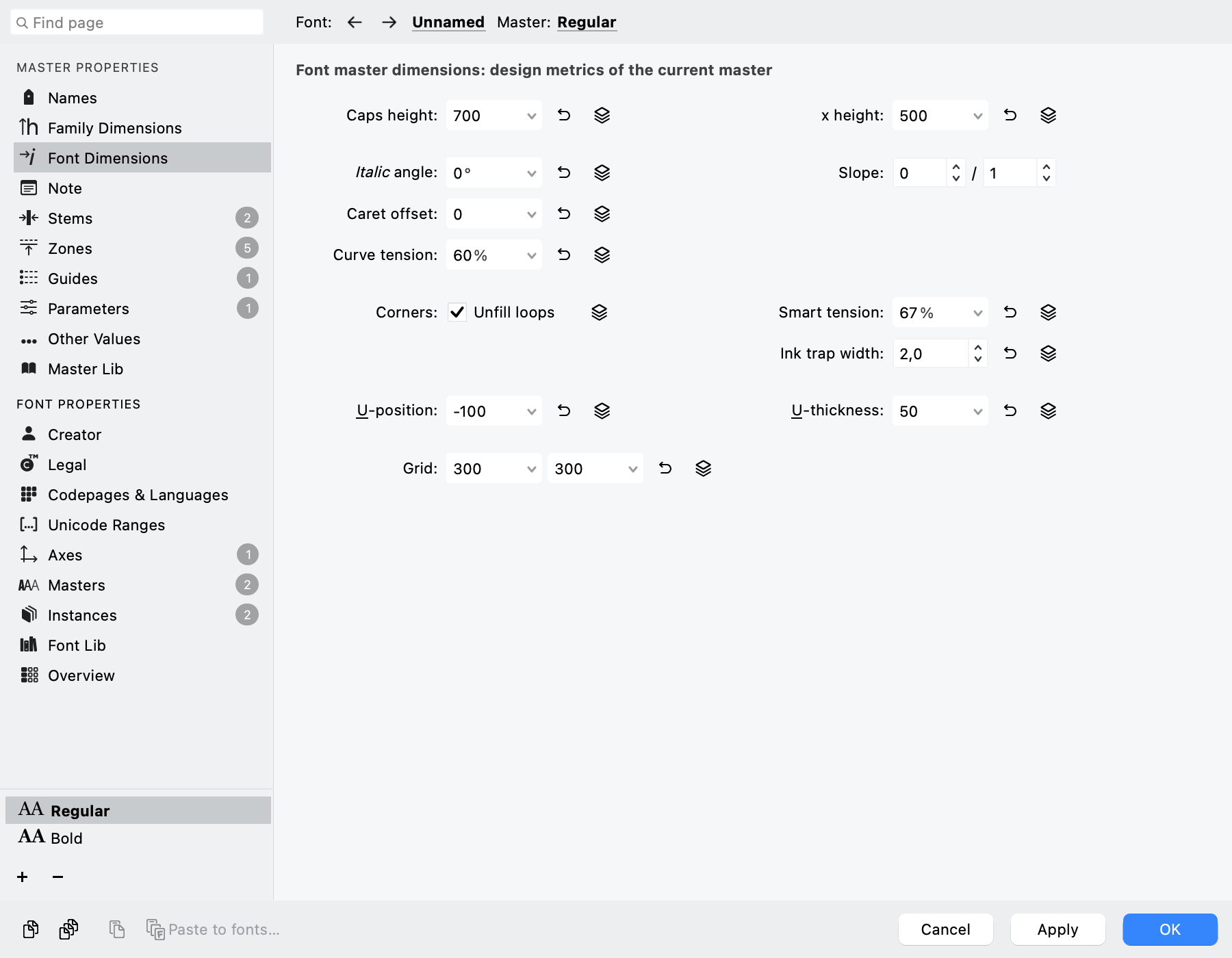
Font Dimensions groups Italic angle, Slope, and Caret offset with the current master’s design dimensions.
Set the value to match the intended inclination of the drawing. An automatic calculation can provide a starting estimate when suitable glyph content is available, but inspect the result before using it as the design's reference.
The italic angle is separate from the Slope class used in naming, such as Plain, Italic, or Oblique. The naming attribute identifies the style; the angle supplies a numerical slant to the drawing and layout aids. Check that both describe the font you are making.
Slope ratios
The Slope X and Slope Y fields express the same inclination as a ratio: a horizontal movement of X units for a vertical rise of Y units. The angle and slope fields are linked. Editing either slope field updates the angle; editing the angle computes a corresponding ratio.
For example, X = 1 and Y = 5 describe a line that moves one unit right for every five units upward. Its angle from vertical is about 11.31°. Multiples of that vector, such as 20 units right and 100 units up, lie exactly on integer coordinate positions.
A small-integer ratio can therefore be convenient when drawing along the slant with integer coordinates. It does not force every point onto that line or replace snapping. It gives you a direction that can be represented exactly by suitable integer coordinate differences.
| Slope X/Y | Approximate rightward angle |
|---|---|
| 1/10 | 5.71° |
| 1/8 | 7.13° |
| 1/5 | 11.31° |
| 2/9 | 12.53° |
The slope supplies the rise and run of the exported italic caret, the text insertion cursor: Slope Y corresponds to hhea.caretSlopeRise, and Slope X to hhea.caretSlopeRun. For their export, see The Export Process.
FontLab also uses the angle for slant-aware drawing aids: Follow Italic Angle in Basic Node and Handle Operations, the slanted marquee in Selecting and the Contour Tool, the grid in The Design Grid, and the Slant transform's italic-angle modifier in Contour Transformations. These aids read the value; enabling them does not slant existing outlines.
After setting an angle or ratio, apply Font Info and inspect a representative glyph with the slanted metric view enabled. Repeat the setup for other masters when they require different values.
Slanted Sidebearings and Caret Offset
Italics often provide emphasis within upright text. Their spacing must balance both transitions: into italic and back into upright. Poor placement can leave a gap at the start of the italic run and crowd its end. Simply slanting an upright font can expose this imbalance.
Horizontal metrics and a leaning shape
In horizontal text, advance width remains a horizontal distance. An installed font has no additional pair of FontLab-style slanted sidebearings: outlines and ordinary horizontal metrics determine glyph placement.
A leaning drawing is harder to judge against vertical boundaries. A stem, a main stroke of the letter, can approach one boundary near the baseline and the other near its top. FontLab's slanted sidebearings align the measurement and display with the italic angle, so bearing lines can run parallel to the stems.
Metric views
Use View > Italic Angle:
| Choice | Canvas reference |
|---|---|
| Do Not Apply | Upright metrics |
| Apply to Metrics | Slanted metrics |
| Apply to Metrics and Grid | Slanted metrics and grid |
The backslash key cycles these choices in the editing context. For the grid, see The Design Grid.
With ordinary numeric metrics, switching views changes the reference rather than moving the drawing or changing its advance width. Compare the same glyph under Do Not Apply and Apply to Metrics. With metrics expressions, switching may trigger spacing recalculation; check sidebearings and advance widths before assuming the data and export are unchanged.
Editing a spacing value in either view changes the font. A slanted reference helps you assess that edit; it does not make the edit display-only.
Caret offset
Caret offset, on Font Dimensions, shifts the slanted reference horizontally. On export it supplies hhea.caretOffset, used for a slanted text cursor or selection highlight by applications that support it; see The Export Process. It does not move outlines or change advance widths.
The bearing lines slant about their feet on the baseline. For a right-leaning design, a correctly spaced glyph can then appear to have less space on its left than on its right. This displacement grows with glyph height and the tangent of the angle, so one offset is a compromise across heights.
To set it:
- Establish the master's italic angle.
- Enter a starting Caret offset, or use its automatic calculation as an estimate.
- Apply the Font Info changes.
- Select the Metrics tool and choose View > Italic Angle > Apply to Metrics.
- Inspect correctly positioned glyphs at several heights and adjust the offset while watching the reference.
- Check the exported caret behavior.
Check each master; copy the offset only where the same reference placement is appropriate. See Managing Layer Content.
Caret placement and spacing
Caret offset cannot repair letters placed too far left or right within their advance widths. Correct their actual placement first, then adjust the offset to align the reference and exported caret with it. Use the slanted view to judge the design along its inclination and the upright view to inspect horizontal placement.
For spacing, see The Metrics Workspace and Spacing Glyphs. Batch repositioning is available through Actions, with composite and expression cautions in Controlling Composite Metrics and Relational Spacing.