Saving and Reusing Filters
A useful view is worth keeping. Filter history lets you return to a recent choice, a bookmark gives a recurring view a name, and an encoding file makes an ordered glyph collection portable.
These mechanisms preserve a way of identifying glyphs. They do not save a second copy of the drawings or replace saving the working font.
Filter History and Bookmarks
The Sidebar's Search History records applied filters. Choose an entry to apply it again. This is useful when you temporarily leave a review group to inspect another part of the font.
A filter bookmark is a named filter stored for deliberate reuse. Unlike the history list, which fills as you work, bookmarks are entries you choose to retain.
To bookmark a filter from history:
- Apply the filter you want to keep.
- Select its entry in Search History.
- Click the add button in Bookmarks.
- Rename the new bookmark to describe the group or task clearly.
You can also drag an entry from history into Bookmarks. A selection of glyph cells can be dragged there to preserve an explicit group rather than a general property condition.
Click a bookmark to reapply it. To remove one, select the bookmark and use its remove button. This removes the stored view definition, not the glyphs that matched it.
Reusing a view with another font
Bookmarks are stored in application preferences and can be used with another open font. A property-based bookmark evaluates against that font's data; a name enumeration looks for the specified names there.
The same bookmark can therefore produce different results in different fonts. A missing name in an enumeration does not mean the bookmark was lost, and applying a bookmark does not copy glyphs from the font in which it was created.
Choose a name that describes the rule or purpose rather than only a momentary result count. “Review alternates” remains understandable when the collection changes; “17 glyphs” may not.
Encoding Files
An encoding file is a plain-text .enc file defining an ordered glyph-name collection. FontLab can load it as an Encoding filter, making it useful for sharing target coverage or a preferred review sequence across fonts and computers.
The names define positions even when the current font does not contain those glyphs. This is what makes the file useful for planning. A font with all the named glyphs can show their drawings; another can show missing positions against the same target.
The file contains a declaration naming the encoding, an optional grouping line, and a glyph name on each subsequent line. The following is an illustrative file in the form written by FontLab's encoding exporter:
%%FONTLAB ENCODING: -1; Review alternates
%%GROUP:Review sets
a
a.ss01
f_i
The first line declares the encoding and its display name. The %%GROUP: line supplies a group label for the Encoding menu. The remaining lines establish the ordered targets. They contain names, not outlines, Unicode character drawings, or font settings.
FontLab's built-in Encoding collections are also supplied as inspectable .enc files in its application data. Use an exported copy or a user-data file for customization so that an application update does not replace your work.
Use an exported file as the starting point when creating a custom encoding. It gives you a header appropriate to the application's reader. Edit the collection in a plain-text editor, preserving the header syntax and one-name-per-line structure.
Names must correspond to the intended working convention. Synonym matching can bridge some differences, but it does not make every arbitrary custom name equivalent to another font's name. If the purpose is exact production coverage, inspect the matches and missing positions rather than assuming that a readable name has resolved as intended.
Working with Encoding Files
Exporting the intended collection
The encoding exporter uses the Font window's displayed cell collection and order. It does not export only the selected cells unless the view itself has first been reduced to that selection.
- Apply the filter whose collection you want to capture. For an arbitrary selected group, first turn its name list into a search filter.
- Turn on Hide unfiltered glyphs if only matches belong in the encoding.
- Inspect the resulting collection and order, including any missing positions you intend to retain.
- Choose File > Export > Encoding....
- Choose a filename and destination, then save the
.encfile.
With Hide unfiltered glyphs off, the display can contain both matches and non-matches, and both are included in the export. “Displayed” means the collection represented by the view, including cells reached by scrolling; it does not mean only the portion currently visible on the screen.
The exported file's name supplies its initial encoding name, and the font's family name supplies the initial menu group. If you want a different group label, edit the %%GROUP: line in the exported text. There is no need to rename the working font just to change the encoding's menu organization.
Installing a shared encoding
Place the .enc file in the Encoding subfolder of the configured user data folder. Its location is available under Preferences > General > Other > User data folder. Use that configured location rather than assuming every installation uses the same path. The folder hierarchy and other customizable files are covered in The User Data Folder and Customizable Data Files.
After installing a file externally, restart FontLab so its encoding choices are refreshed. An encoding exported through FontLab can refresh the list directly. Select the resulting entry through the Property Bar's Encoding filter choices and inspect its coverage in the current font.
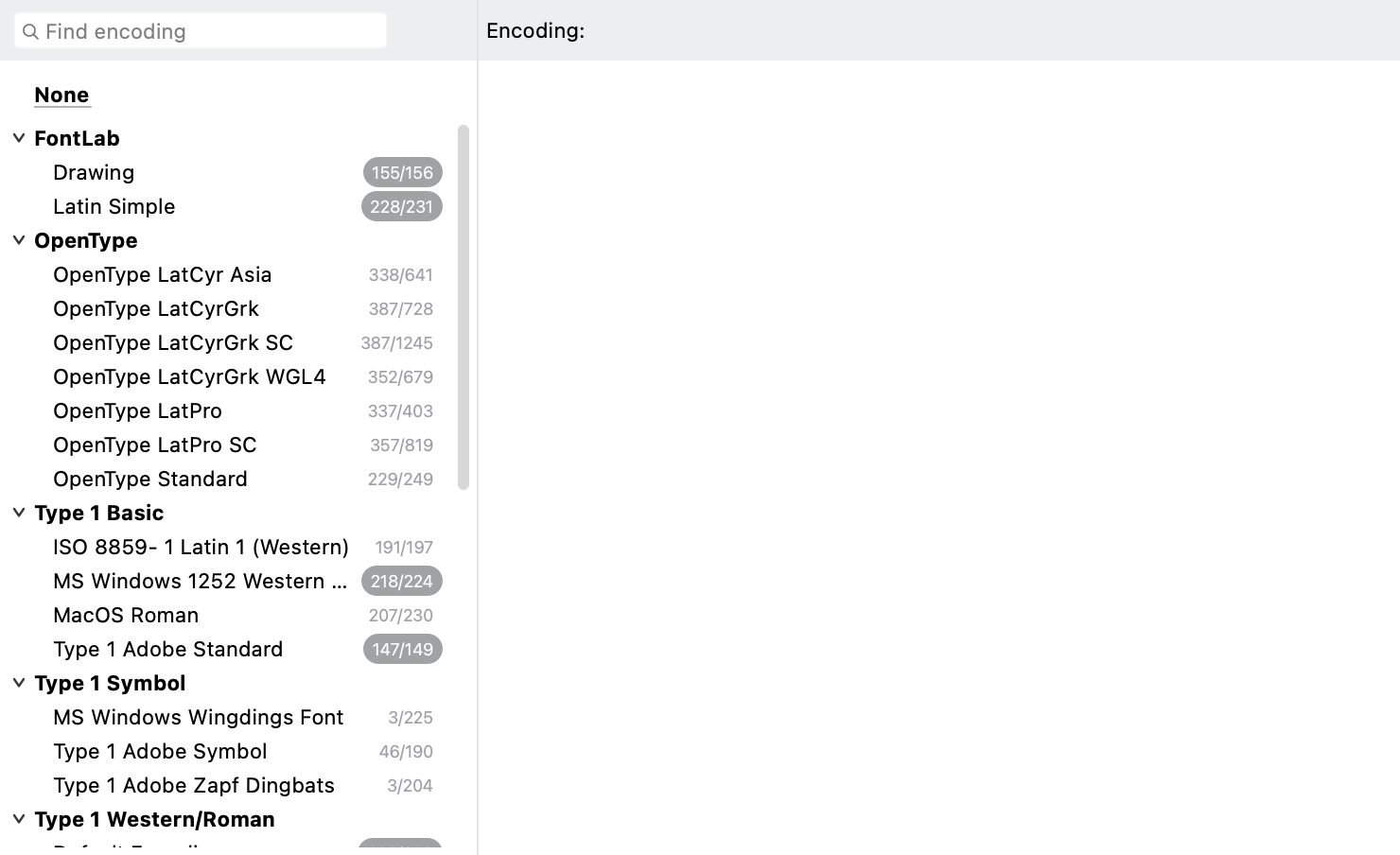
The encoding chooser groups available definitions and shows coverage counts beside them.
The file can be shared with another designer, who can install it in their own user data folder. It transfers the target list and order, not the source font. Keep the associated naming convention clear when sharing a collection intended for several tools or projects.
The -1 index shown above is written by FontLab’s exporter. Use distinct encoding names to identify your saved lists; preserve an exported header rather than inventing a positive index from an older file-format rule.