Working with Bitmap Color Images
Place and process pixel-based artwork while keeping its resolution and transparency distinct from vector outlines.
Bitmap Color Content
An image element contains a bitmap: a rectangular grid of pixels. Import or paste a color image into the glyph, then use element transformations to place it at the intended size. Element references can reuse the image content elsewhere while allowing each occurrence its own placement.
Scaling changes how large those pixels appear in the glyph; it does not create the detail of a higher-resolution source. Choose image dimensions appropriate to the sizes at which the design must be viewed, and check fine details at those sizes.
Bitmap content remains raster content in color output. It does not become scalable vector artwork merely because it is stored in a font. Depending on the export route, the image may be embedded or the glyph may be rasterized at specified sizes. Plan for that pixel-based result while designing.
Process the image
These filters change the image data. Each application uses the current result as its input, so repeated clicks can accumulate the effect. Keep the original image file and use a separate working copy when comparing treatments you may need to recreate later. If the image content is shared by element references, unlink the occurrence before filtering when only that copy should change.
Open Window > Panels > Image with the intended bitmap element selected. Choose a filter, adjust its settings, and use Preview to inspect the effect before clicking Apply.
| Filter | Use |
|---|---|
| Sharpen | Increase local contrast to emphasize detail. |
| Soften | Reduce local contrast and soften detail. |
| Gaussian Blur | Blur the image over an adjustable radius. |
| Reduce Noise | Reduce small variations that interfere with the intended image. |
| Find Edges | Produce a bitmap emphasizing changes at edges. |
| Despeckle | Reduce isolated pixel defects. |
| Threshold | Classify pixels using luminance, opacity, or a reference color. |
| Remove Background | Make background regions transparent using the selected removal method. |
The same image-processing operations are available in Element > Image. Choose the panel when you want to adjust and preview their settings before committing.
A blur does not undo sharpening, and softening does not reconstruct detail removed by an earlier operation. Compare the actual pixels after each application. Find Edges also remains a bitmap operation; its visible edges are not editable font contours.
Threshold and background removal
Threshold offers luminance, opacity, and color modes. Luminance uses brightness, opacity uses the image's alpha values, and color compares pixels with a selected reference color. The color picker is available in color mode. Use Colorize when the classified foreground should use a chosen color.
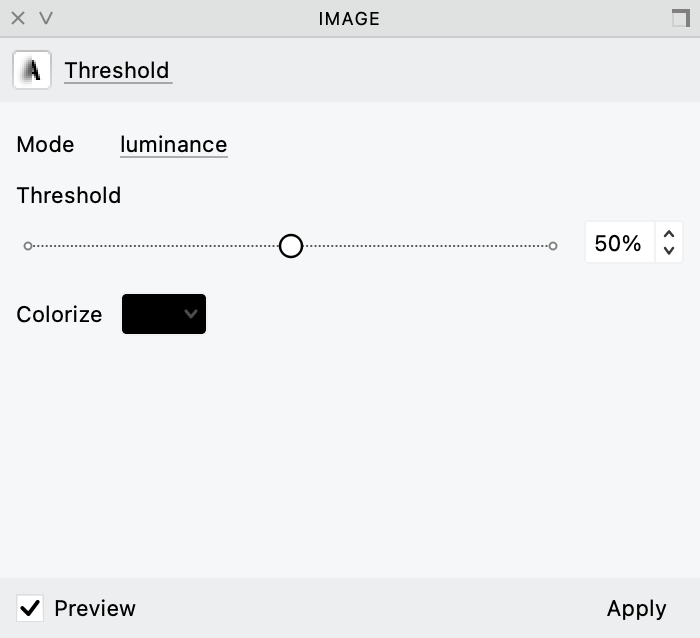
Threshold processes bitmap pixels using the selected mode and cutoff; Preview shows the change before Apply.
The result need not be a black drawing on an opaque white rectangle: opacity-based processing and colorization can change alpha and foreground color. Inspect transparent regions as well as the visible image before applying the filter.
Remove Background offers smart, color, and luminance modes. Try smart processing for an automatically determined result. Choose color when you can identify the background color, or luminance when brightness separates the background from the subject. The range controls appear for color and luminance processing; luminance also offers Inverse. Use the preview to judge the retained edge, especially around translucent or softly shaded details.

Remove Background offers mode, quality, range, and color controls. The selected color is part of this example’s setup.
Compare quality settings on a representative image, checking the subject’s boundaries and small interior regions. A higher setting does not establish that the background has been correctly identified.
Keep pixels and contours distinct
A bitmap cannot use Make SVG Editable to recover its original drawn shapes. FontLab's autotrace workflow can derive monochrome contours from an image, but it does not reconstruct a multi-color illustration as an automatically separated set of editable color regions.
Keep the bitmap for a painted or photographic appearance. Use drawn or imported vector elements when independent contour and part-color editing is the goal.
Bitmap Output
Bitmap images retain a finite pixel grid. Enlarging that grid cannot reveal additional source detail.
Bitmap content requires an output route that preserves or renders those pixels. Decide whether your design must remain vector, or whether fixed-resolution imagery is appropriate, before building the entire glyph set.
For mixed vector and bitmap artwork and native-source preservation, see Working with SVG Color Images.