Element Transformations
An element can be moved, scaled, mirrored, rotated, or slanted while retaining its original content coordinates. The transformation belongs to that occurrence of the element. This lets a shared drawing appear in several places without forcing every occurrence to have the same pose.
Global and Local Coordinates
The glyph has a coordinate system based on its origin and baseline. Each element's content also has a local coordinate system. With an identity transformation—no offset, rotation, or slant, and 100% size on both axes—those systems coincide. A transformation maps local content into its displayed position in the glyph.
For example, a local point at (100, 200) with an element offset of (50, 0) appears at (150, 200) in glyph coordinates. The stored content point has not moved. Removing that offset restores the earlier placement.
Ordinary canvas coordinate readouts describe the displayed position in the glyph, including the element transform. You can therefore continue to place points against the glyph's reference lines without converting every coordinate by hand. The element's offset, size, rotation, and slant fields describe the transformation separately; relative handle or transformation fields still need to be read in their own stated context.
A group introduces another coordinate relationship. Its transformation applies above each member's own transformation. The visible position is the combined result, so a member's zero offset does not mean that it must appear at the glyph origin when its group is transformed.
Element-Level vs. Contour-Level Editing
Use the Element tool (V) to work with containers. A live element transformation changes the occurrence's placement and leaves its shared contour coordinates intact. Other references to the content retain their own transformations.
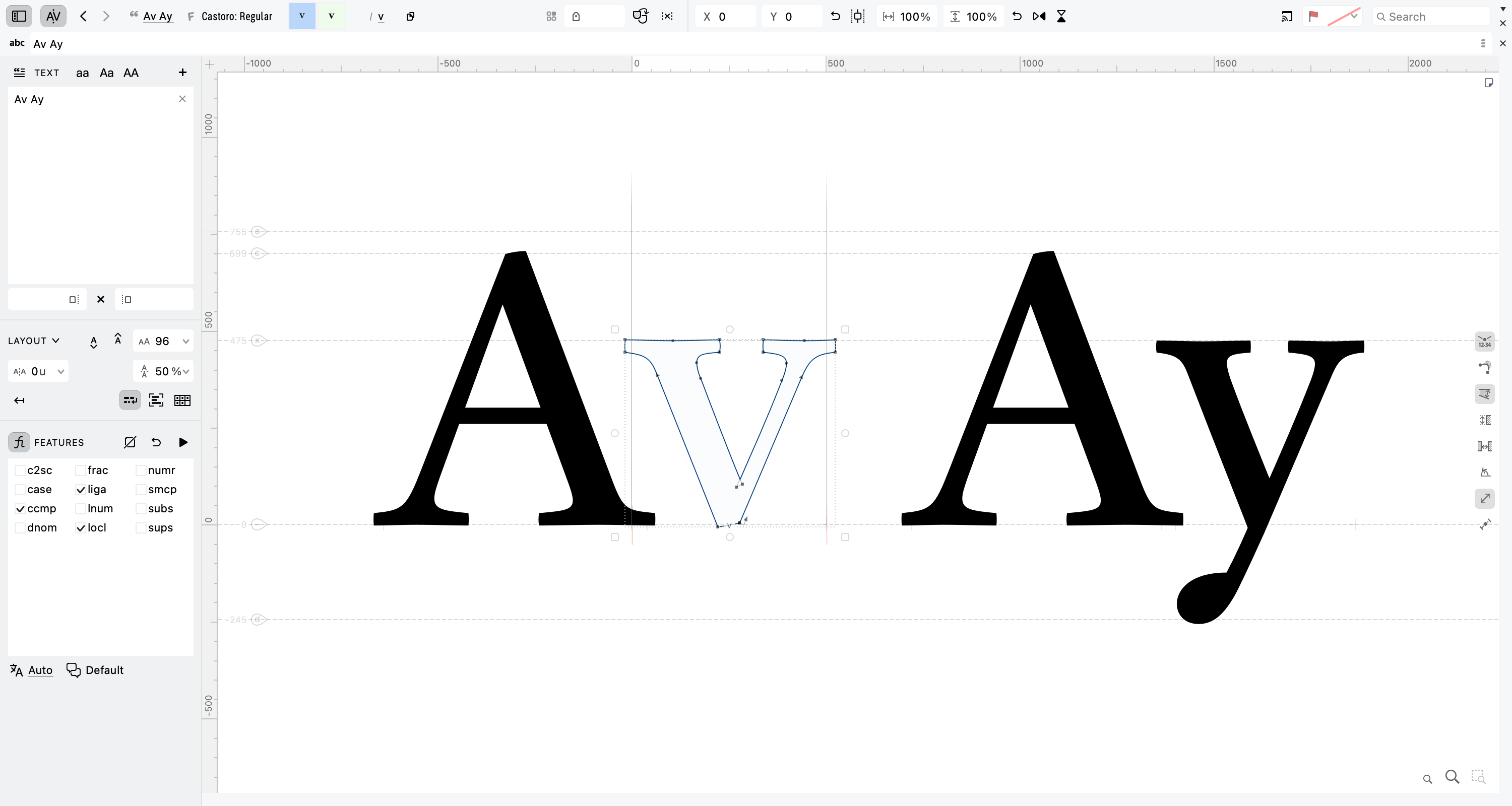
With the Element tool active, the selected element is framed as an object within the glyph rather than as an individual node selection.
Use the Contour tool (A) to edit the drawing inside the container. Moving a shared node rewrites the content and affects every reference to that content. Recall the contour-level transformations in Contour Transformations: the same move, scale, rotate, slant, and flip operations can change stored points, whereas an element transform retains a separate placement transform. The fact that another occurrence is scaled or rotated does not make its source drawing independent.
Consider two references to one arrowhead. Moving one with the Element tool changes where that arrowhead appears. Moving its tip node with the Contour tool changes the shape of both arrowheads, each under its own transformation. Check which tool and editing level are active before making the change.
The transform tools and Free Transform indicate the level with their usual colors: green for an element transformation and blue for a contour edit. Content locking provides another safeguard. A locked element resists in-place contour changes while remaining movable as a whole; it does not sever its references.
Expand or discard a transformation
Element > Remove Transformation returns the selected element to an identity transformation without deliberately rewriting its content. Partial reset controls can remove offset, scale, or rotation/slant separately.
Element > Expand Transformation incorporates the transformation into the contour coordinates and resets the live transform. Coordinate rounding can affect that result. It is a change to the representation, not a deletion of the visible transformed shape.
With shared content, expansion can also compensate other occurrences' transformations to retain their appearance. Do not use it as an implicit unlink command. If the goal is an independent local drawing, explicitly unlink the reference before editing its contents.
Work across elements
Edit > Edit Across > Elements lets contour-editing operations reach more than the current element. Like Edit Across Glyphs in Text in the Glyph Window, it broadens editing scope; it does not make shared content private. Edit Across Layers is taught in Editing across Masters. Before a broad selection or transformation, inspect both the editing scope and which selected parts are referenced elsewhere.
Drawing tools still need a current destination element. Being able to select across containers does not mean a newly drawn contour belongs to every selected element.
Select through the Elements widget
The Elements widget provides an on-canvas map of current and selected content. A plain button click makes that element current. With the Element tool active, it also selects the element.
Use Shift-click for a range or Cmd-click on macOS (Ctrl-click on Windows) for a non-contiguous multi-element selection. These modified selections can retain the current element while adding other targets. Check the highlighted buttons before transforming the group of selected occurrences.
A button label in italic type indicates a live element transformation. It is a reminder that the visible geometry includes an instance transform, not evidence that the underlying points themselves were rewritten. Some content types have different compact labels, so use the panel when you need the full state.
Applying Element and Group Transformations
Select the element and show its properties in the Elements panel. The principal transform fields are:
| Parameter | Interpretation |
|---|---|
| Horizontal and vertical offset | Translation in font units; positive moves right or up |
| Horizontal and vertical size | Scale percentages; 100% retains size |
| Rotation | Angle in degrees; positive rotation is counterclockwise |
| Horizontal slant | Shear angle; positive values lean right |

The element widget combines position, scale, slant, rotation, and reset in one compact control.
Equal positive size values give uniform scaling. Values between 0 and 100% reduce the corresponding dimension; values above 100% enlarge it. Entering zero collapses that dimension, so use it only when you intend to flatten the content to a line.
The rotation readout can normalize equivalent turns into the −180° to 180° range. The panel's horizontal slant field is limited to ±45°. The reference or transform origin determines what stays anchored; do not assume every panel and interactive gesture uses the same pivot merely because both accept an angle.
Mirror and reset
A negative size mirrors the corresponding axis while scaling by its absolute value. −100% mirrors at the original size. A one-axis reflection reverses the displayed winding of a contour; reflecting both axes applies two reversals and retains its overall winding orientation. Direction-sensitive skeleton work is developed in Designing with Skeletons.
The horizontal and vertical flip buttons combine mirroring with placement compensation. They can therefore keep the visible shape in a different position from entering a raw negative scale around the transform origin. Inspect the result instead of treating those routes as identical coordinate operations.
Use the per-row reset controls to restore offset to zero, size to 100%, or rotation/slant to zero. Copy Transformation transfers the transformation for reuse on another element. Inspect the destination bounds and origin: identical parameters applied to different content need not produce the same visible alignment.
Align and distribute
Center in Metrics positions an element within the glyph's advance interval. It changes placement, not the glyph's advance width.
For several selected elements, Element > Align brings their edges or centers into a shared alignment and provides distribution commands for even spacing. These operate on the selected element bounds. They do not establish equal optical gaps between differently shaped contents.
You can also use the Element tool's Free Transform or the Rotate, Scale, and Slant tools interactively. Confirm the green element-level indicator, set the intended pivot, and inspect the live parameter values afterward.
Transform a group
Select an element group to transform all members together. Their individual transforms remain in place underneath the group transform. A member offset is interpreted within the transformed group, so rotation or scaling of the group changes the visible direction or size of that offset.
Reset and Expand act at the level you invoke them. Check whether the current selection is the group or a member before removing a transform or committing it to geometry.
This is the same placement mechanism used by components: adding a component at an offset, flipping it, or snapping it to an anchor sets the transformation of its occurrence. The element model makes that relationship visible and available for smaller shared parts as well.