Expressions and Parameters
A fixed position records where an object is now. A location expression records a relationship, such as a guide halfway between two design heights. FontLab can recalculate that relationship when its inputs change.
Use expressions for references that should follow the design, and fixed coordinates where the position should remain independent.
Relational Positioning
Expressions combine numbers, named values, and arithmetic. Use +, -, *, and /, with parentheses to group calculations. Use the ordinary minus character when entering a formula.
The following built-in variables provide common references:
| Variable | Reference value |
|---|---|
ascender |
Ascender position |
descender |
Descender position, normally negative |
x_height |
Lowercase design height |
caps_height |
Capital design height |
baseline |
Baseline, normally zero |
width |
The current glyph's advance width |
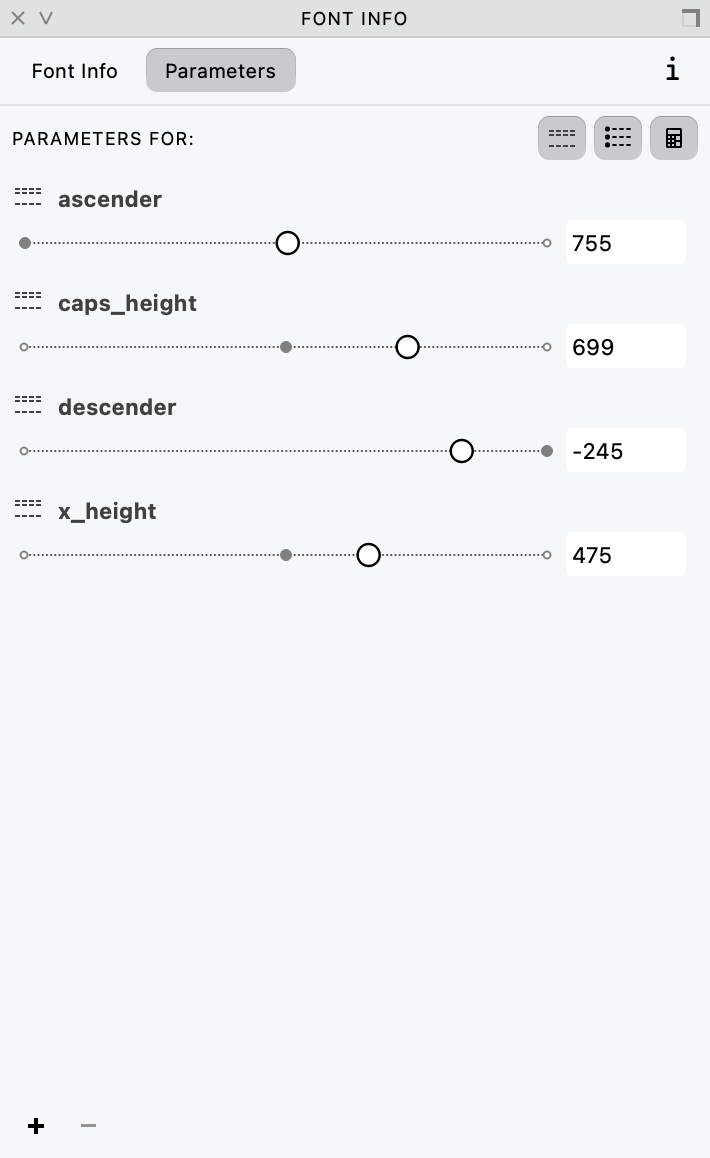
The Parameters tab keeps named values together. The example lists dimensions that other expressions can refer to.
Use the spelling shown, including underscores. Parameters are stored per master; check dimension-variable results in each intended master before depending on their resolution there. width needs a glyph context. It is particularly useful in a glyph guide rather than as an assumed single value shared by the whole font.
Position a guide by a formula
- Create a horizontal glyph guide and select it.
- Open Window > Panels > Guide.
- Enter
(caps_height + x_height) / 2in the calculator-marked Expression field and confirm the edit. - Inspect the guide's resulting y position.
- Change one of the referenced design heights, apply that change, and check that the guide follows. If this was only a test, restore the original design-height value afterward.
With Caps height 700 and x Height 500, the expression gives 600. If Caps height changes to 720, it gives 610. The relationship is retained; it is not merely a calculator that replaces the formula with today's result.
Other useful guide expressions include:
| Goal | Expression |
|---|---|
| A horizontal reference 12 units below the baseline | baseline - 12 |
| A vertical glyph guide halfway across the advance | width / 2 |
| A horizontal reference above the cap line | caps_height + 30 |
| Midway between ascender and descender | (ascender + descender) / 2 |
The average of two positions uses their sum divided by two. Half their difference measures half the interval and is not, in general, the midpoint's coordinate.
Reference named objects
Give a guide a name when another expression needs to follow it. If smallcap_top names an available horizontal guide, another horizontal guide can use smallcap_top + 15.
Names create dependencies. Keep them distinct and descriptive, and check the appropriate object scope when a name is unresolved. Avoid a cycle in which one guide depends on a second guide that depends back on the first; there is no independent starting value for that calculation.
Anchors and pins also support location expressions, including coordinate-pair forms. Their positioning workflows use the same idea, but their fields and coordinate context differ; see Anchors for Positioning and Element References. Alignment zones are not a location-expression workflow on the Font Info Zones page.
Spacing fields have their own metrics-expression language, taught in Relational Spacing. Do not assume that a formula accepted for a guide can be pasted unchanged into a sidebearing field, or that a glyph-name spacing reference means the same thing as a named guide.
Parameters
A parameter is a named number that you define. It extends the available values beyond the built-in dimensions. Examples include a small-cap height, figure height, or a script-specific reference level.
Define and use a parameter
- Open File > Font Info > Parameters and check the active master.
- Click + to add a parameter.
- Name it
smallcap_heightand enter the intended value, for example560. - Apply the Font Info changes.
- Select a horizontal guide and enter
smallcap_heightas its Expression.
The guide now follows that named value. Use smallcap_height + 10 for a related offset without duplicating the base height in several places. Expression-field completion can help you choose an existing name.
Parameter values can be fractional. The font's coordinate precision still affects the positions or geometry that use them, so a fractional parameter is not a promise that every final position will remain fractional; see Coordinate Precision.
Manage the list
Edit a parameter's value in its field or with its slider. Rename an entry by editing the name; inspect expressions that depend on it after a rename. Before removing a parameter, use expression search to find formulas that depend on it and revise those formulas as needed. Then select the parameter and use − to remove it. Otherwise, dependent expressions can remain unresolved.
Drag entries to reorder the list, or use Find parameter to filter it by name. List order is for organization, not the order of evaluation.
Parameters are per-master. A name can exist with different values in different masters, and a missing name in one master can cause an error there even when another master evaluates correctly. Match Parameters, covered in Managing Layer Content, helps synchronize name sets, but verify the values in each master rather than assuming that matching names supplies the right design values.
The parameter list is also used by other features. Names prefixed with stroke. can supply thickness shorthands (see The Thickness Tool), and parameters can appear in per-master OpenType positioning code (see Kerning, GPOS, and the kern Table). Those uses have their own evaluation and update behavior; defining a parameter does not automatically create a live relationship everywhere its value is used.
Understanding Error Messages
An invalid expression can produce an Output message when a VFC/VFJ font containing it opens or when the affected object is edited. If a location does not update, inspect those messages. A message can identify an unknown variable or the expression that could not be evaluated. Correct the named source of the problem instead of repeatedly entering a replacement numeric position.
Check spelling, parentheses, the relevant object scope, and the parameter's presence in the active master. Also check for circular dependencies. Apply the correction and inspect the dependent guide again.
Enter the expression text in the Font window Property Bar’s search box and choose its expression-search criterion, or use Edit > Find Glyphs, to locate other uses of a name or a fragment of an expression. This is especially useful before removing a shared parameter. An unresolved expression is a dependency to repair; a plausible-looking old guide position is not proof that the current formula succeeded.
Work from the first unresolved relationship rather than changing every dependent value at once. A guide that refers to a missing parameter needs that parameter restored or its formula corrected; replacing the displayed position with a number can conceal the dependency instead of repairing it. Keep the original expression available while checking names and object scope.
After a correction, inspect both the formula's result and the object that uses it. A number can be mathematically plausible yet refer to the wrong master, guide, or glyph. Compare a known input with its expected result, then repeat the check where the expression is reused. If a shared name is being removed deliberately, locate its remaining uses first so that the next edit or font opening does not reveal a new unresolved dependency.