Preview and Glyph Map
Preview panel
The Preview panel is a little text editor which allows you to type in any text you’d like to preview using the fonts selected in TransType. To show or hide the Preview panel, click the Preview button on the top bar or use the Window menu.
Some illustrations in this article come from the previous edition. The workflow remains applicable, although exact control placement may differ in TransType 5.
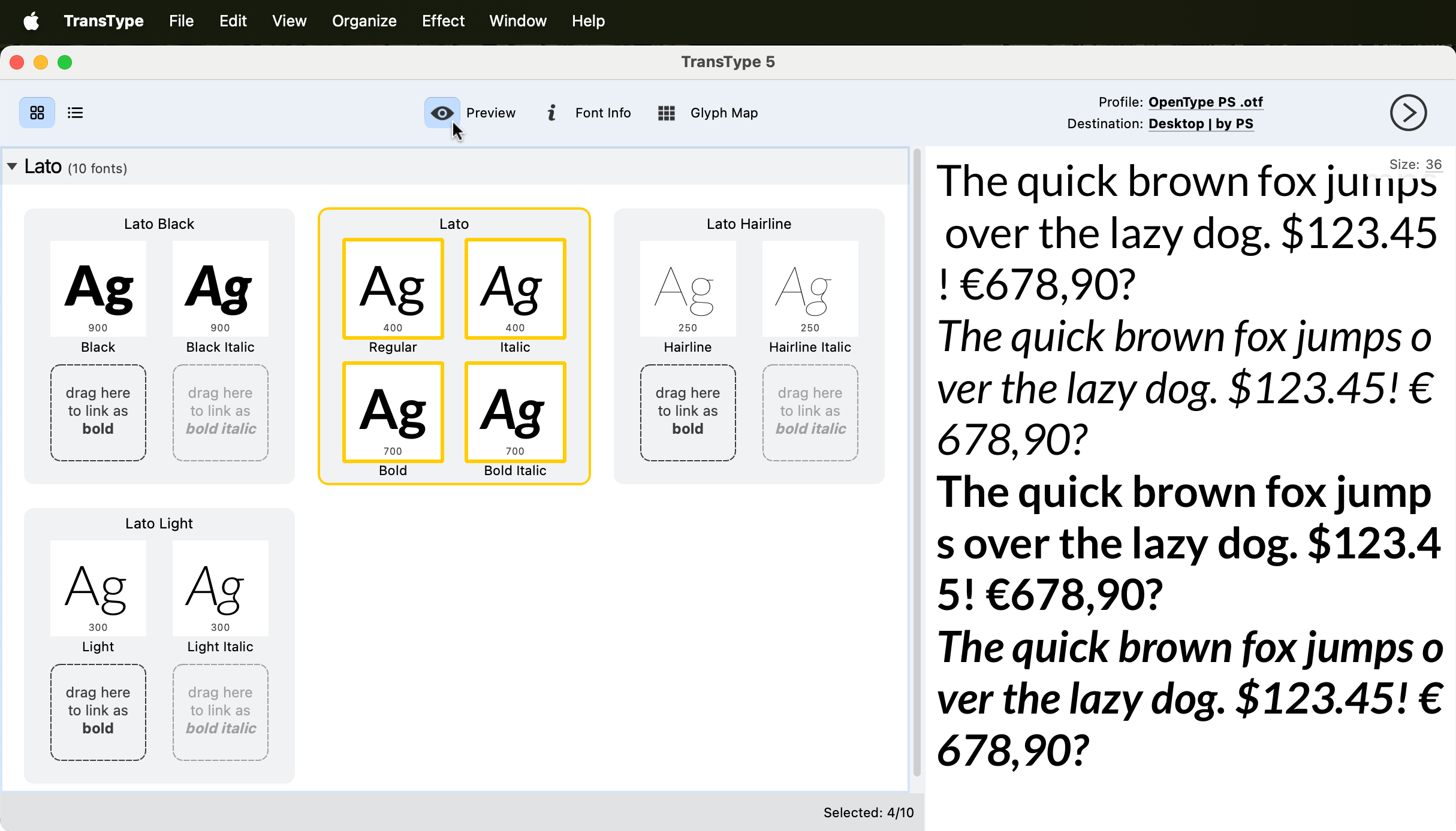
Preview panel visible on the right. Multiple fonts are selected.
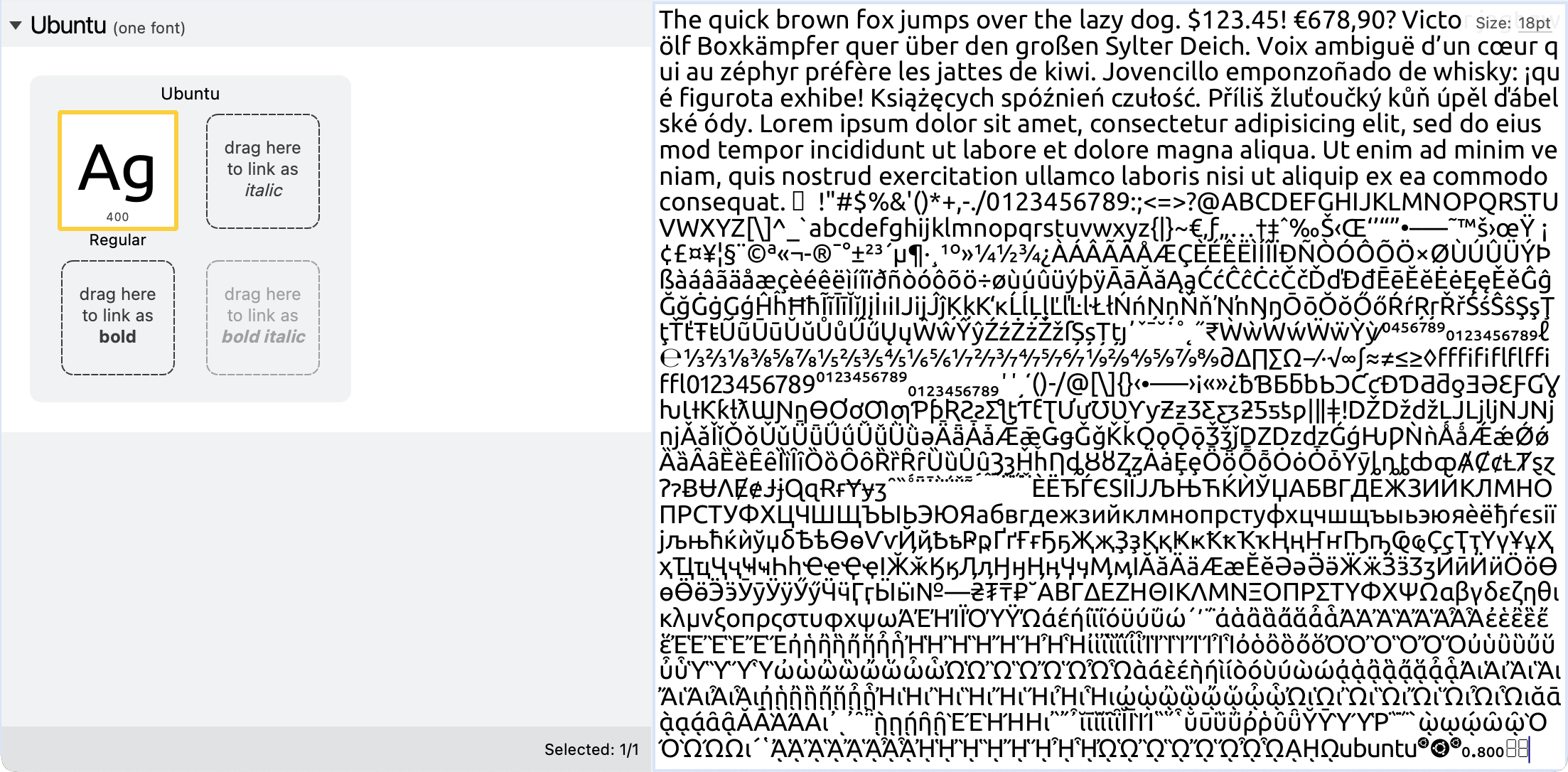
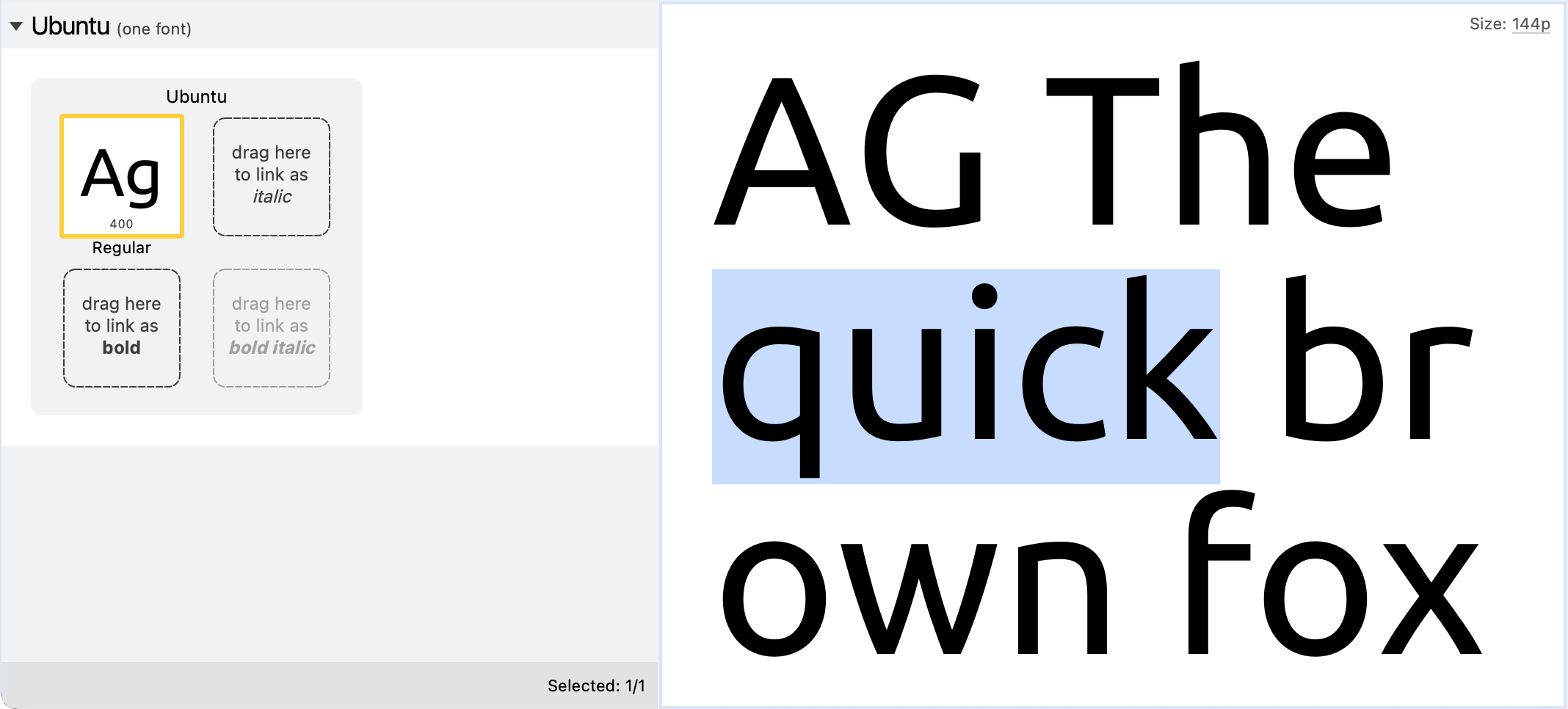
In the Preview panel, you can choose the font size of the displayed text samples. If just one font is selected, the default text sample is longer, and if multiple fonts are selected, the default text sample is shorter.
You can click anywhere within the Preview panel and type in your own text (or paste it from the clipboard). You can also change the default texts (for single font preview or multiple fonts preview) in TransType’s Preferences.
If some glyphs are absent in the selected font TransType will show them in a default font highlighted with blue color:
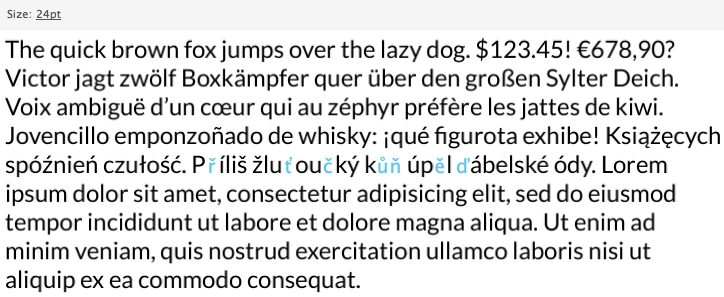
Missing glyphs highlighted in blue.
Glyph map
The Glyph map is a dockable window which shows you the entire glyph repertoire of the font selected in TransType. It’s similar to the Character Map in Windows, the Character Viewer in macOS, the Glyphs palette in Adobe InDesign and Illustrator, or the Font Window in Fontographer and FontLab Studio.
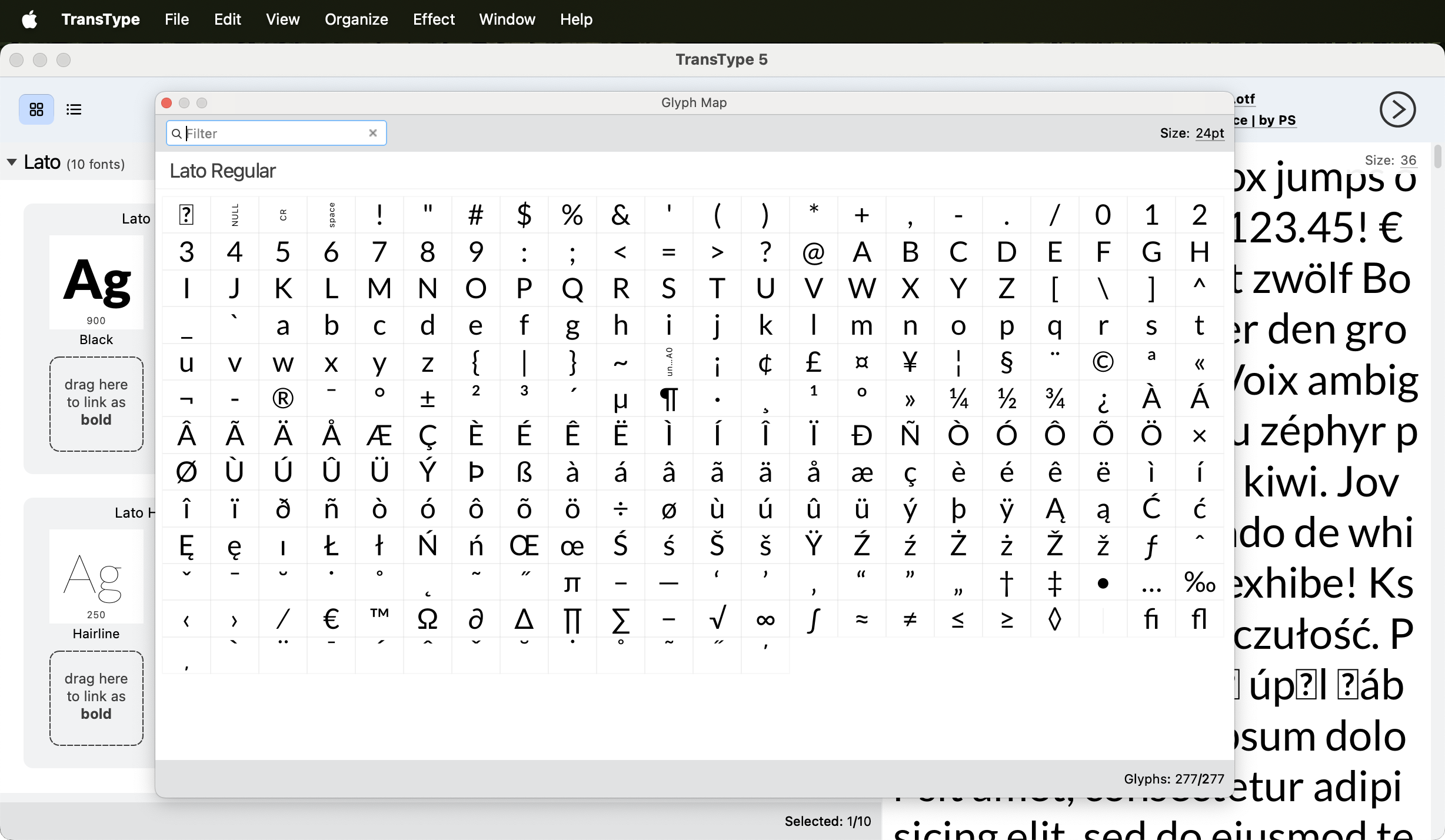
Glyph Map panel.
Docking the panel
You can dock the Glyph Map panel to the left, right or bottom side of TransType’s window. To do this, simply move the panel to the window’s edge.
Variable font size
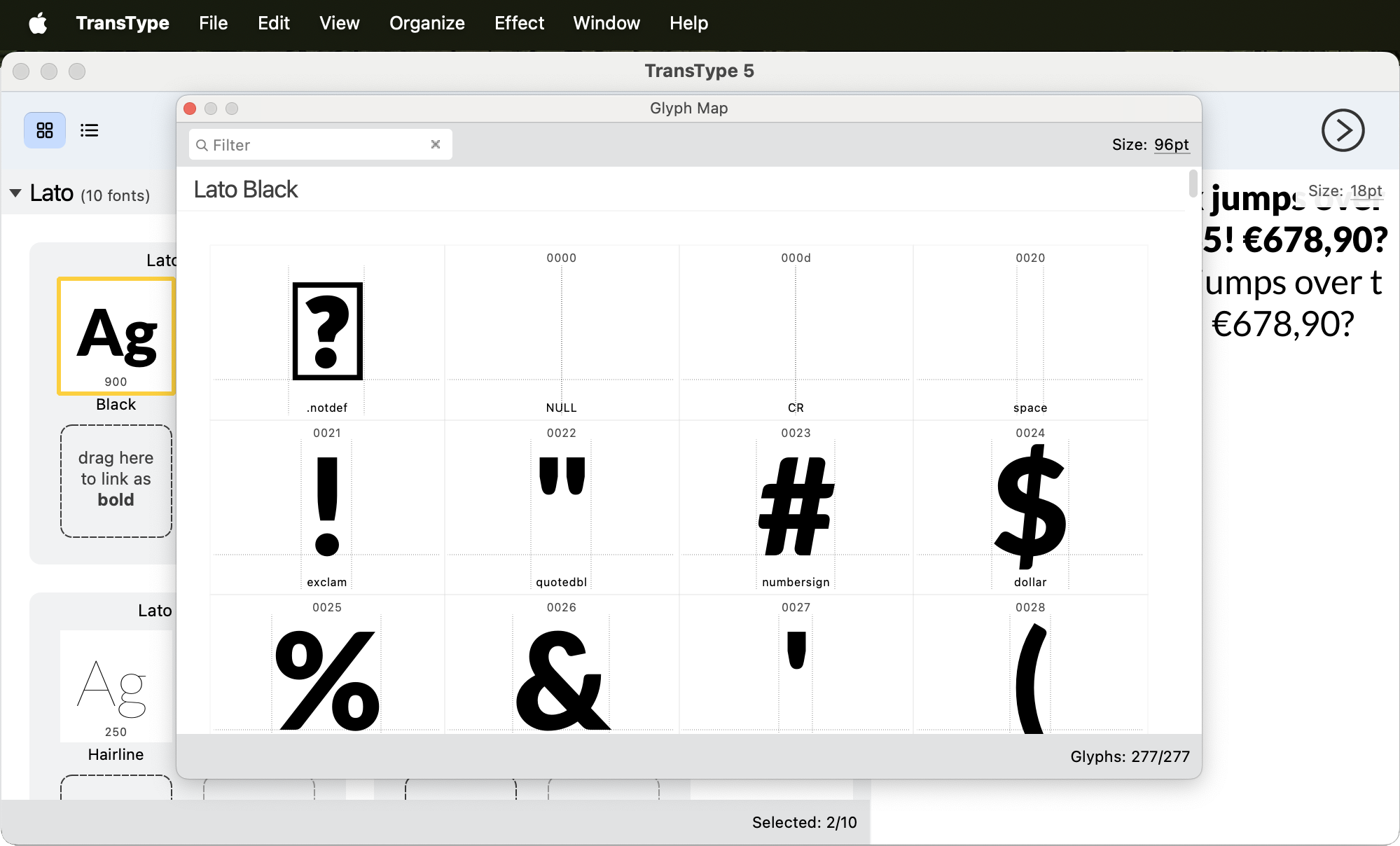
You can change the font size of the Glyph map. If you increase the font size using the dropdown list in the upper-left corner, more details will be visible in each glyph cell (the Unicode codepoint and the glyph name).
Search for glyph or character names
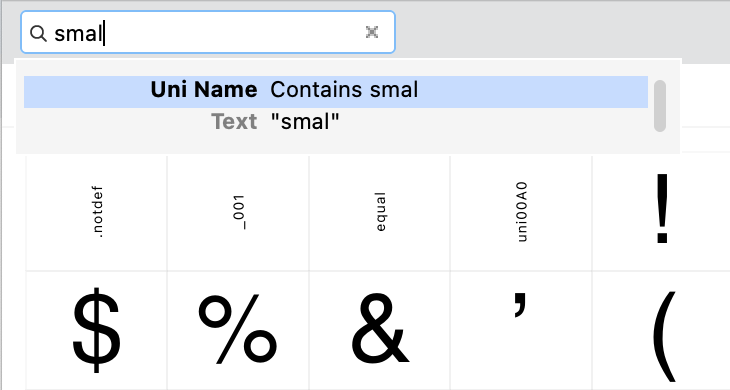
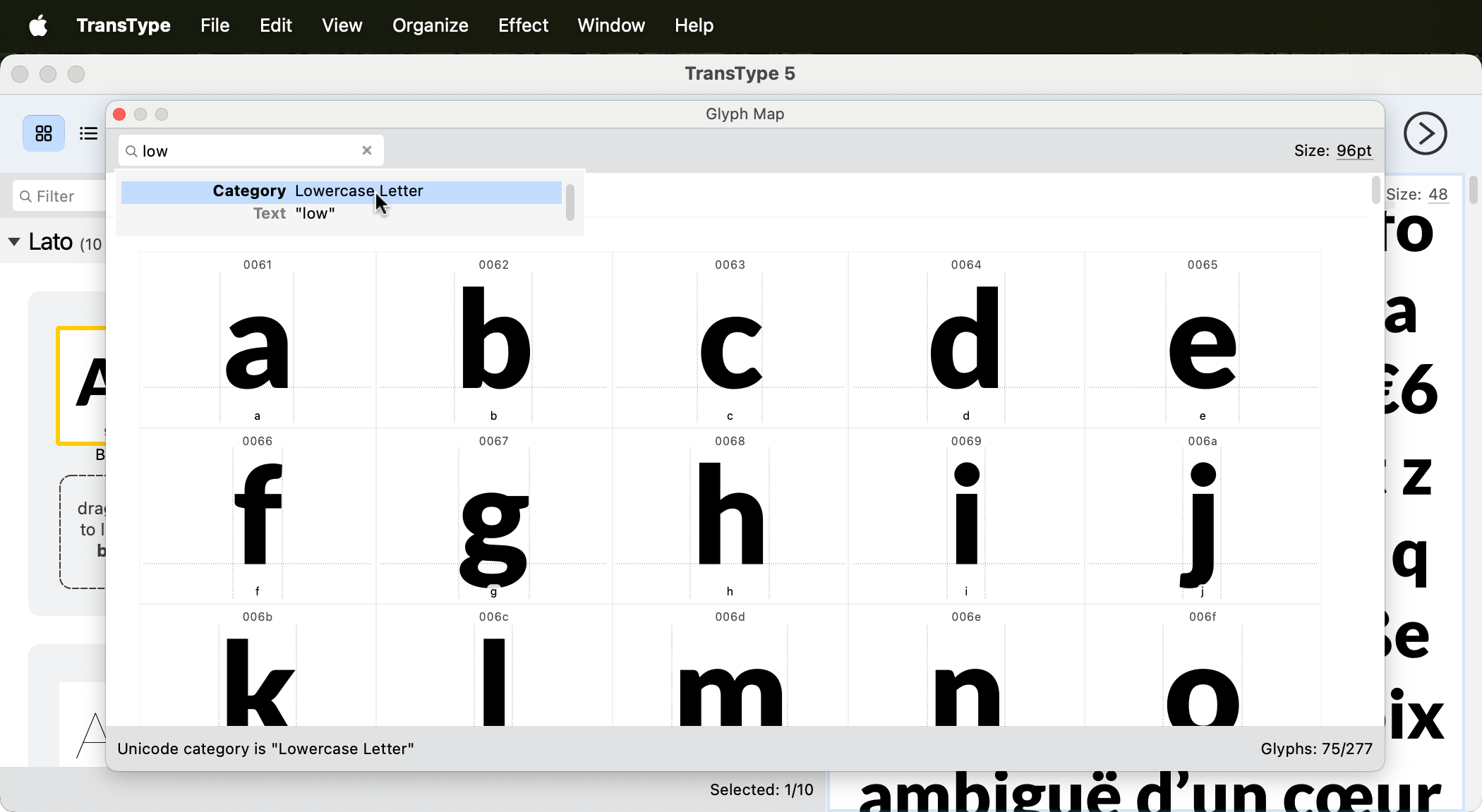
Using the Filter box, you can type in any string of Unicode characters to see only these characters (if the font contains them). You can also type in a portion of a glyph name, of a Unicode character name, of a Unicode range name or of a codepage name to see only glyphs for which the search matches. For example, to see only lowercase letters contained in the font, type in “lowercase” and select Category: Lowercase letter from the dropdown list, or type in “small” and select Uni Name: Contains small.
Copy-paste OpenType glyphs into Preview panel
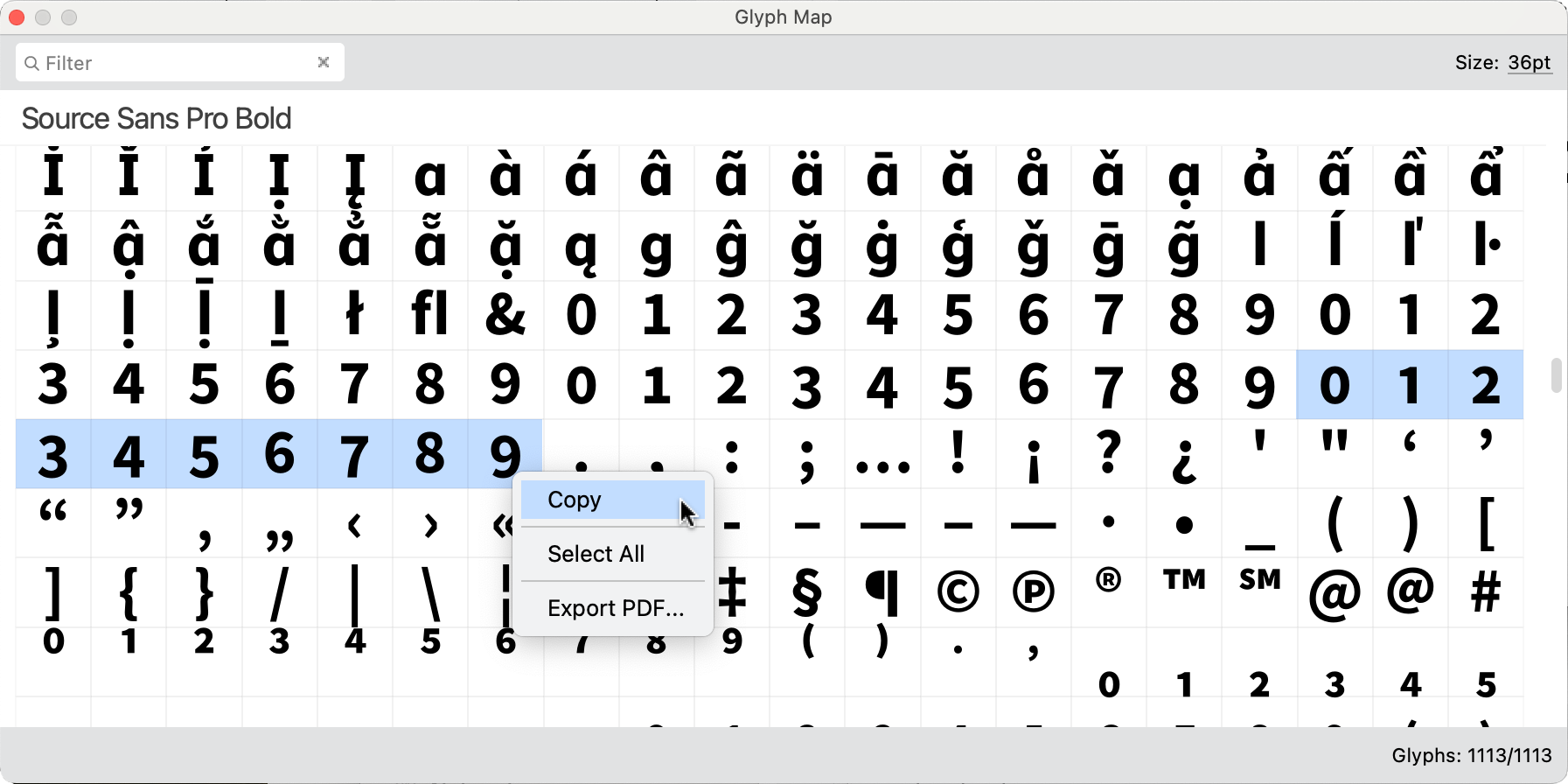
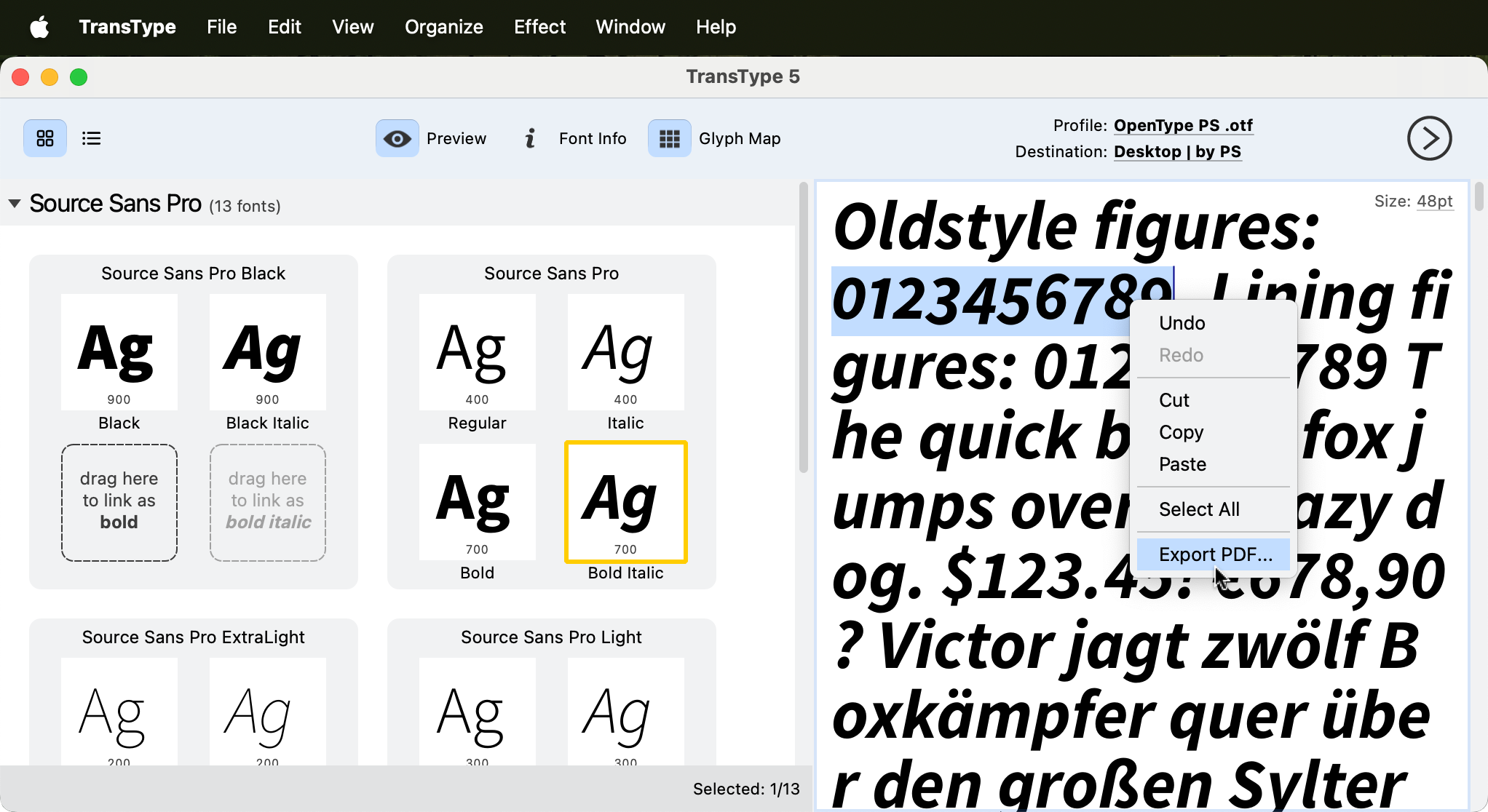
Finally, it’s possible to select some glyphs from the Glyph map; copy them and then paste them into the Preview panel.
Creating PDF specimens
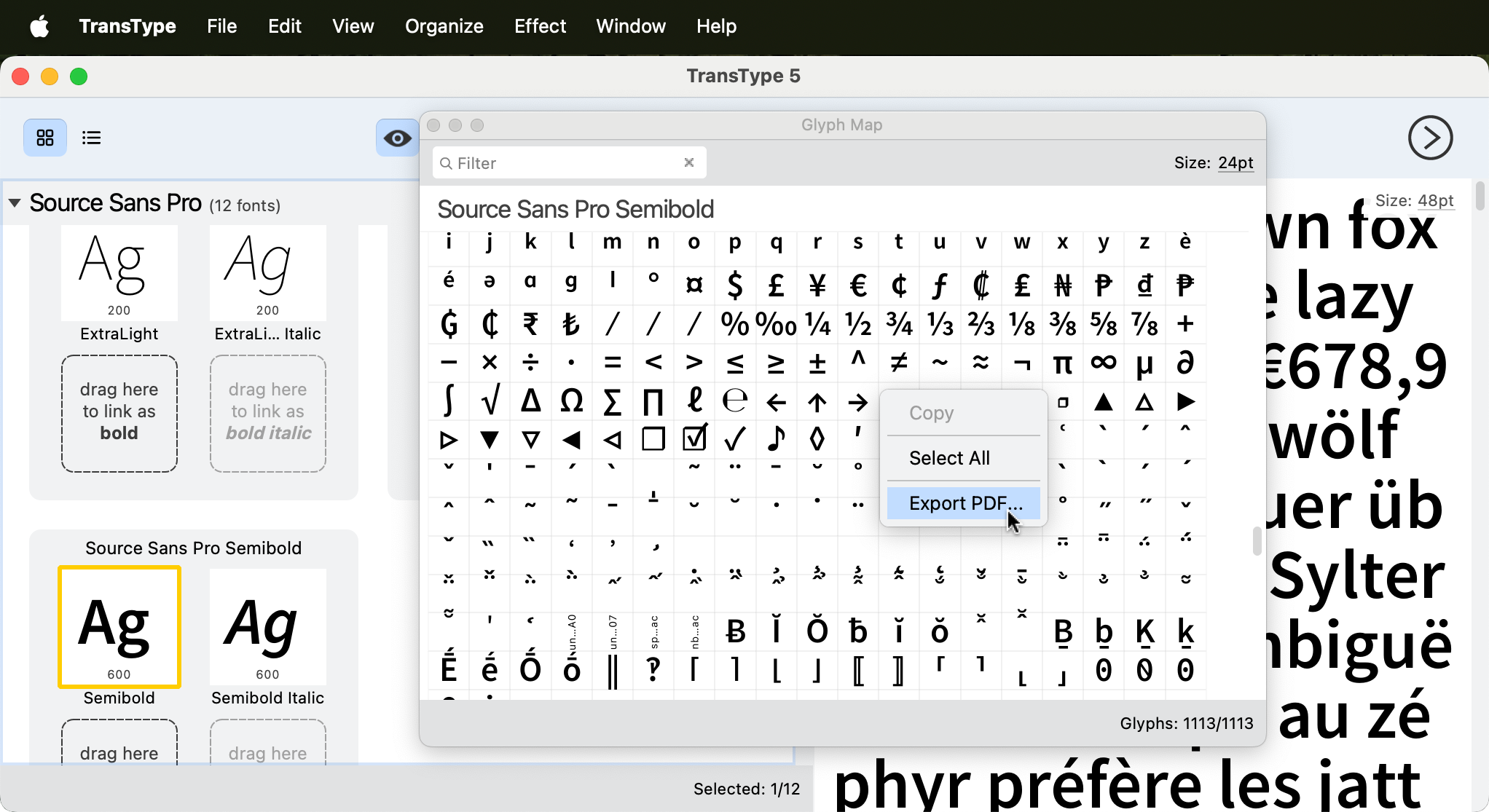
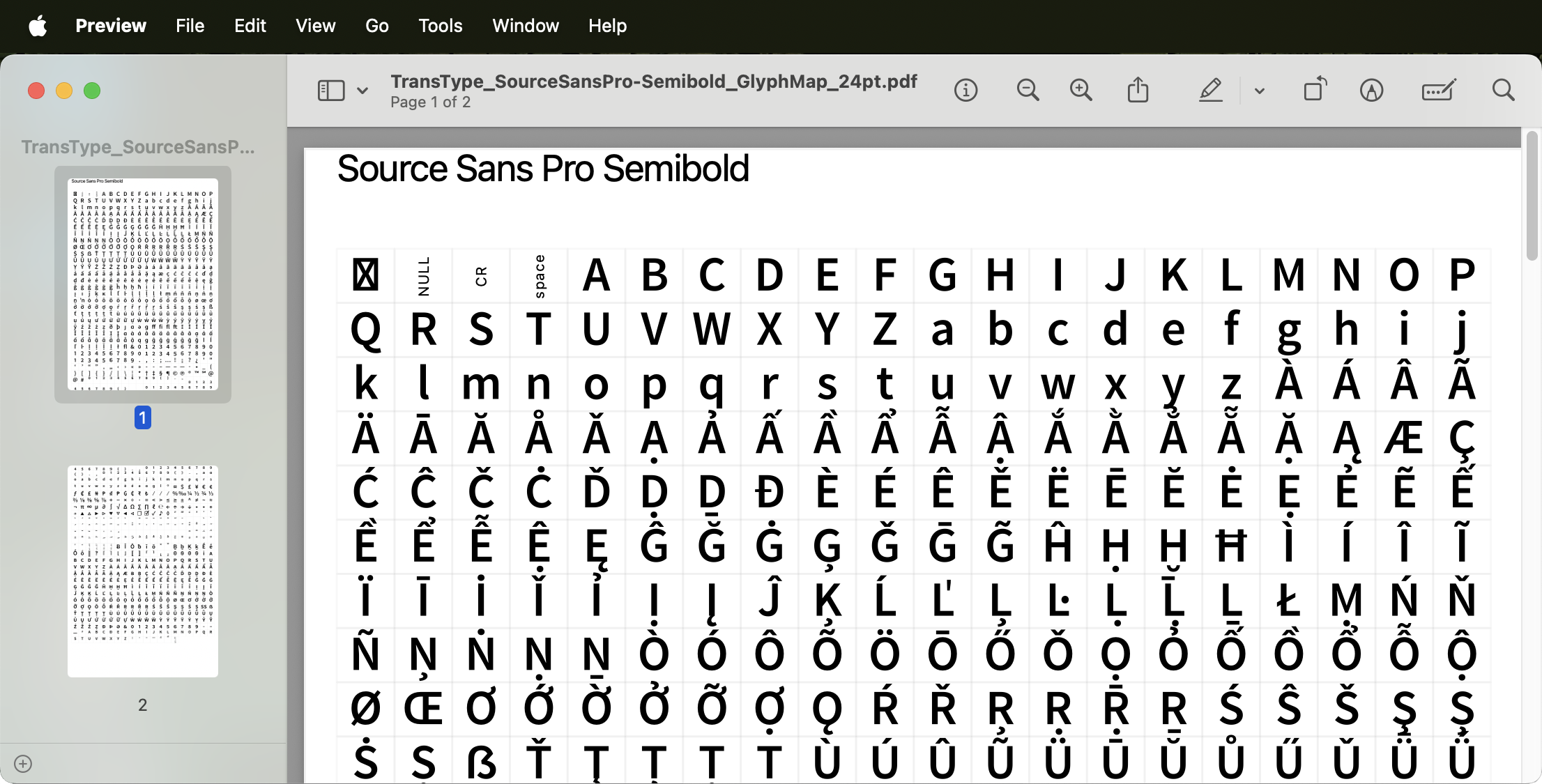
If the Preview or the Glyph Map panel is active, choose File / Export as PDF or right-click and choose Export PDF to generate a multi-page PDF containing the entire contents of the Preview panel or the entire Glyph map. This is a very fast way to produce some font showings (specimens).
Variable-font instances
TransType previews the selected target, not merely the original source file. A named or custom variable-font instance is therefore shown at its target design-space location. Select one target at a time when you need to confirm a particular instance.
Scope of the current interface
The preview engine contains additional waterfall, optical-size waterfall and metrics-line rendering modes, but the current TransType 5 interface does not expose controls for those modes. The user-facing Preview panel provides editable sample text and point-size selection, while the Glyph Map provides repertoire browsing and filtering.