Troubleshooting: Errors and Warnings
When opening fonts
If TransType cannot open a source font, it will present a dialog reporting an error. This will typically happen if you try to open a file which is not a font file, or if the font file is malformed / corrupted, or if TransType doesn't know this font format.
If you want to open a font from your system folders where the font is installed, use File > Add Installed... menu command or copy the font into a different location like the Desktop and open from there.
When converting fonts
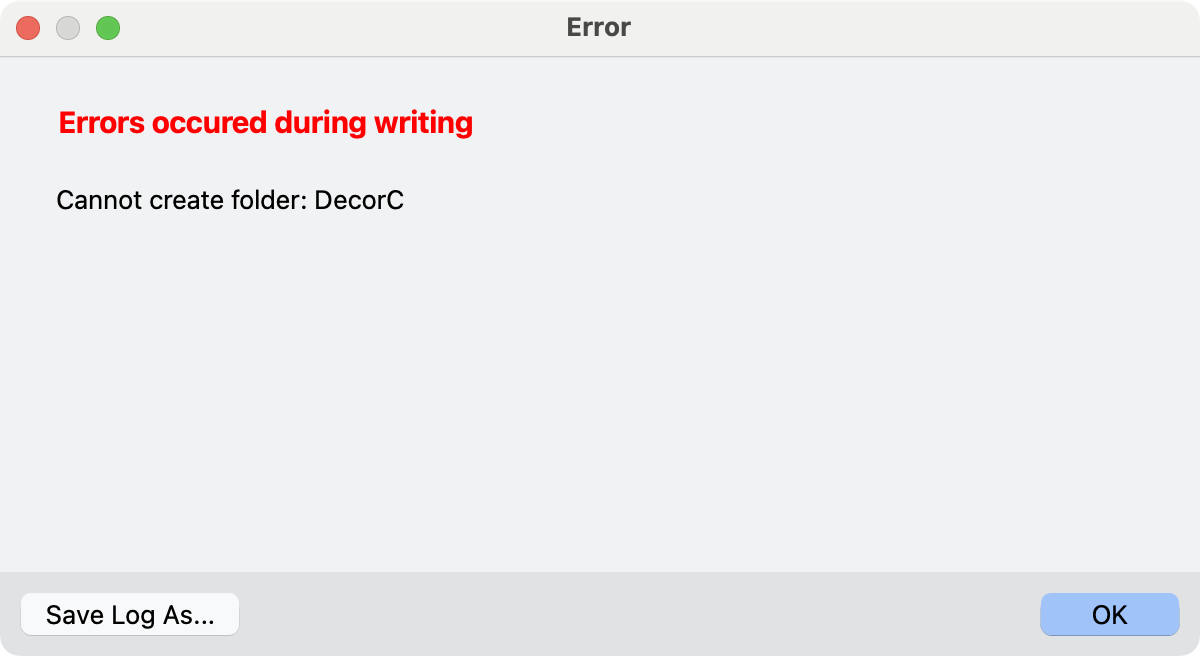
If TransType cannot save a target font during conversion, it presents a dialog reporting an error. Review the writing-error information and save the log when the dialog offers that option. In some cases, the error dialog also suggests a workaround.
When organizing
After you run an organizing operation, TransType may highlight certain font samples with red color. This means that TransType was “unsure” whether it made the right choice automatically. Typically, this occurs when two fonts within a family have the same set of design parameters.
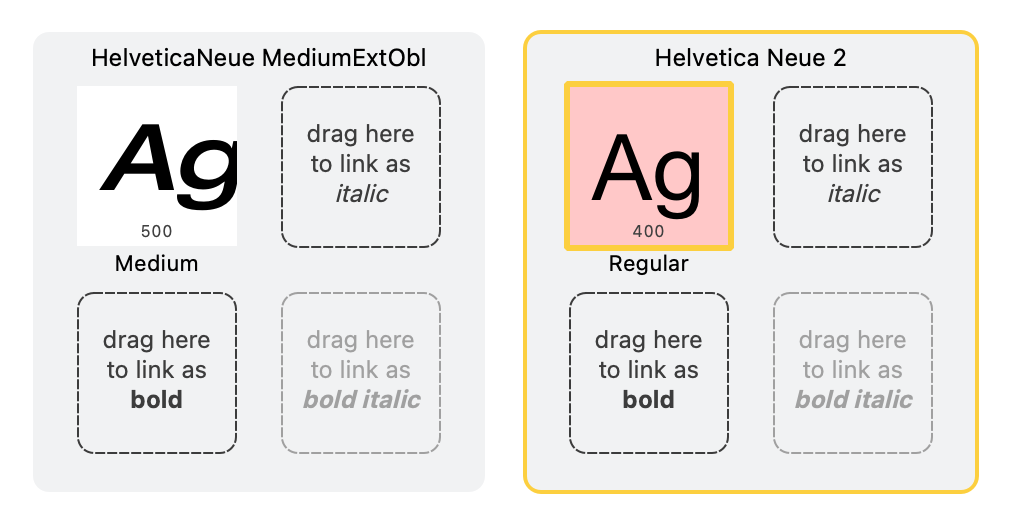
The red highlight does not automatically mean that there’s an error. This is more of a warning: you will need to review the highlighted fonts, and if needed, manually correct some naming fields.
Whenever an operation such as “Build Style Names” or “Optimal Styling” yields really unexpected results, it’s very likely that some of the design parameters declared inside a font are wrong (for example the Weight, the Slope or the Width). You can review and correct these parameters right in the Main area or in the Font Info panel.
A variable font adds no targets
TransType normally imports every named fvar instance. If an OpenType variable font has no named instances, TransType creates one Regular target at the default coordinates. If no target appears, review the reading-error information: the font may be malformed or TransType may have been unable to materialize a valid static face.
Add Instance is disabled
For an OpenType variable font, select one or more targets from the same variable source. For a development source, select exactly one target whose source has multiple compatible masters and axes.
The preview does not match the expected instance
Select one target at a time and confirm its style name and axis location. Duplicate custom locations within a small coordinate tolerance are rejected. For development sources, incompatible or incomplete master data can prevent correct interpolation.
The wrong fonts were converted
Any selection in the Main Area limits conversion to selected targets. Clear the selection to convert all visible targets, taking an active family-name filter into account.
An output file was not written
- Check the destination conflict policy in Preferences: Skip intentionally leaves an existing file untouched.
- Confirm that the destination is writable.
- Type 1 output has stricter glyph and format limits; try OpenType TT when the error reports that the font is too large for the selected profile.
- Review the writing-error dialog and save its log when offered using the Save Log As... button.
Install Fonts failed
Only generated .ttf and .otf desktop results can be installed by TransType. Type 1 files and web-only formats are not installed by this command. A webfont package may contain an installable base .ttf or .otf; its WOFF, WOFF2, EOT and SVG companions are not installed. The exported files remain available even if installation fails. Check the exported font files for integrity. The most quick check is to open the exported font with TransType and see if it can be imported.
Linespacing optimization did not change the font
The current interface stores the Linespacing optimization checkbox, but the export path does not apply it. Edit Ascender, Descender and Line Gap in the Dimensions section instead.
Kerning did not survive conversion
TransType is able to open single Mac PostScript fonts without suitcases. But all family info and font kerning is stored in suitcases. If you open the single PS font you can see glyphs but loose all kerning information.
So always open legacy Mac PostScript Type 1 fonts by opening the suitcase file or zip archive.
An effect looks damaged
Effects are automated and may fail on unusual contours, incompatible blend sources, components or complex color glyphs. Keep the original target, test a small selection and inspect the full glyph set before export.